Gear Selectionlink
Last updated: September 18, 2024
Overviewlink
Gear selection on 2021+ Model X can be accomplished by:
-
Using the touch screen: When pressing the brake pedal while parked, a gear strip displays on the left side of the touchscreen. Use this gear strip to shift 2021+ Model X into Drive or Reverse. Swipe up for Drive or down for Reverse.
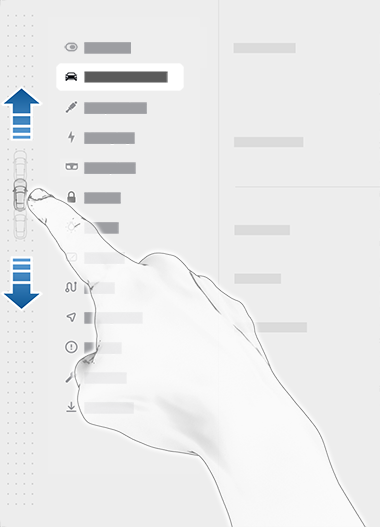
Location of gear strip on UI -
Using the Center Console Control Module (CCCM): Capacitive touch buttons are located on the center console just below the inductive phone charger. In most situations, these buttons are not available until one of the following actions occurs:
- A drive mode button is pressed. When active, the LEDs associated with each drive mode illuminate. When a drive mode is selected, the associated LED illuminates amber.
- In situations where the touchscreen is unavailable (for example, experiencing a technical issue), or 2021+ Model X is in Valet or Transport Mode, the gear selector on the center console activates automatically and there is no need to touch it to activate it.
- Briefly press both scroll buttons on the steering wheel/yoke simultaneously.
Note
If the steering wheel/yoke scroll wheels are pressed for too long, these buttons it will initiate a touchscreen reboot.
-
Enabling Auto Shift: Auto Shift allows for inputs from various sensors to automatically select a drive mode when the customer ready to drive. Auto Shift out of Park is a beta feature and is disabled by default.
Auto Shiftlink
Auto Shift is a feature that allows the vehicle to anticipate a user's intended direction of travel. The program determines the current situation the vehicle is in and uses that information to make a decision on which direction the vehicle should go next. Auto Shift will not shift from torque producing drive modes - it will only automatically shift from Park. The feature will shift into a drive mode when:
- Driver seatbelt is buckled.
- Passenger seatbelts are buckled (if there are passengers).
- All doors are closed.
- The driver steps on the brakes.
Note
Auto Shift feature is set to OFF by default. In order for Auto Shift to automatically select drive modes, the customer should navigate to Controls > Pedals & Steering > Auto Shift out of Park and enable the setting. After the setting is enabled, the following conditions must also be met in order:
- The driver's seat belt must be fastened.
- All doors and trunks must be latched.
- The CCCM must be inactive.
- The brake pedal must be pressed.
- Vehicle is authenticated for drive.
Auto Shift feature utilizes two shift states called "first shift" and "subsequent shift".
First shift occurs in three scenarios:
- After a vehicle sleeps.
- After the driver exits vehicle and vehicle is locked for 20 seconds.
- After charge cable is plugged in.
When Auto Shift determines the vehicle is in first shift state, it will check that the Driver's Assist system is awake and functional and that the vehicle is not parallel parked. The vehicle uses navigation data and GPS sensor to determine that vehicle is parallel parked.
- If the Driver's Assist system is operational, the vehicle is not parallel parked, and the cameras detect an object either in front or rear of the vehicle, Auto Shift will suggest the direction opposite of detected object.
- If the Driver's Assist system is not operational, then vehicle will shift into a drive mode that's opposite of last known drive mode prior to vehicle parking.
- If the Driver's Assist system is operation, but the vehicle is parallel parked, vehicle will use the ultrasonic sensors to detect whether there is object in front or rear of the vehicle, or whether there is no object.
- If there is an object detected in front of vehicle, vehicle will shift into reverse.
- If there are objects detected both in front or rear of the vehicle, only in the rear of the vehicle, or no object is detected, then vehicle will shift into Drive.
Subsequent shift occurs after vehicle is shifted into Park. When Auto Shift determines the vehicle has entered into subsequent shift state, and the Driver's Assist system is awake and functional, the cameras will determine where an object is and Auto Shift will shift into the opposite direction.
- If the Driver's Assist system is not functional or not awake, or it's not confident, then Auto Shift will not make a shift, and instead default to the driver manually selecting a drive mode.
- If the vehicle is parallel parked, Auto Shift will always shift into Drive.
Center Console Control Modulelink
The Center Console Control Module (CCCM) is located just below the inductive phone chargers in the Center Console.
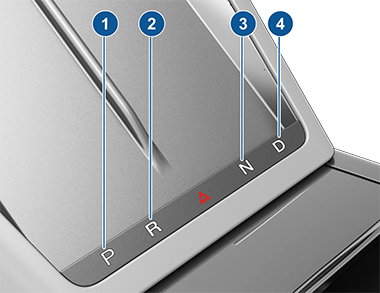 |
|---|
Location of Center Console Control Module
|
The CCCM detects touches of Park, Reverse, Hazard, Neutral, and Drive using five capacitive touch sensors and two force sensors. Each selection on the module has a dedicated capacitive sensor. The left force sensors is located between the Park and Reverse selections. The right force sensor is located between the Neutral and Drive selections.
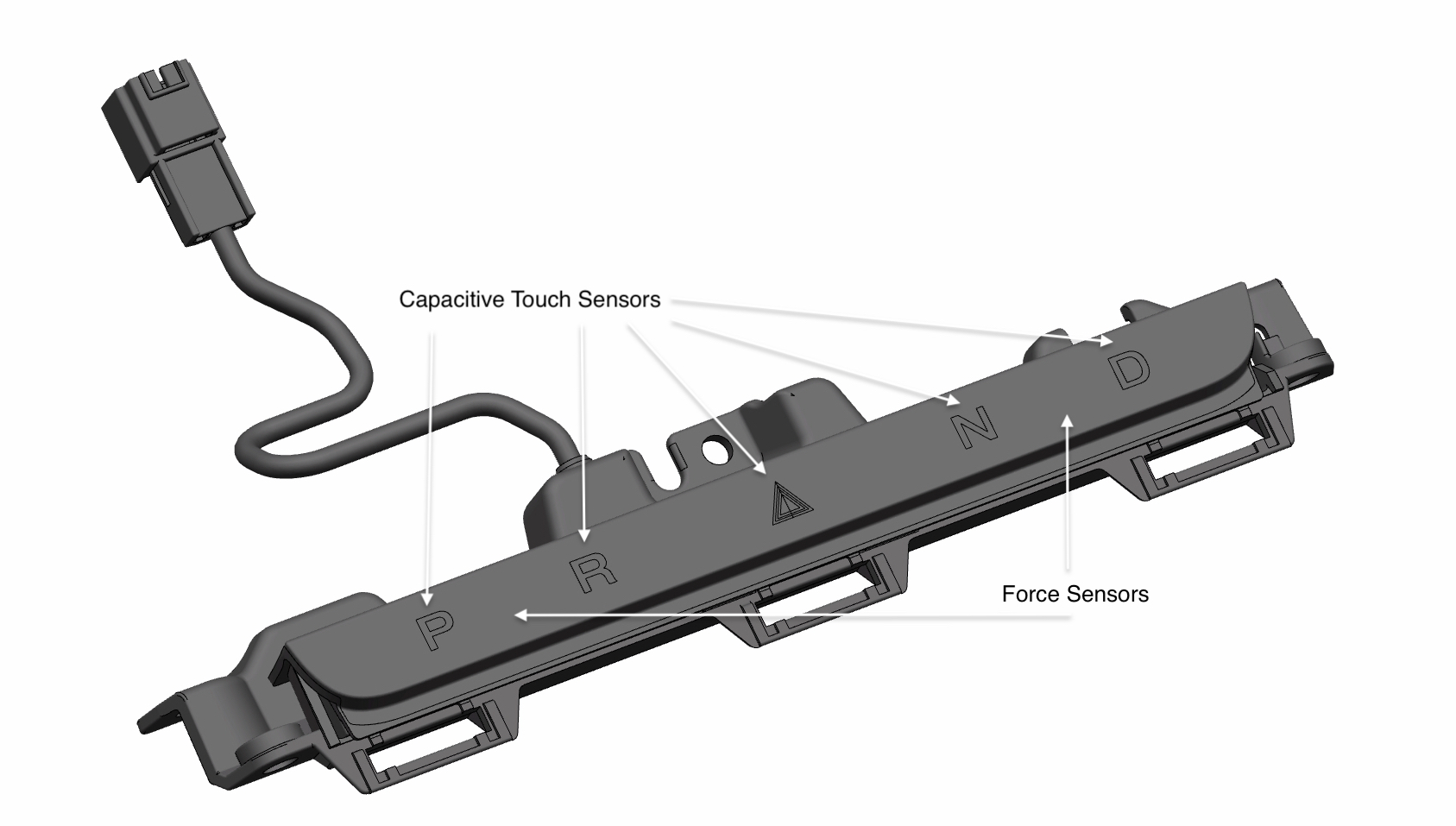 |
|---|
| Center Console Control Module |
In order for the CCCM to send a drive mode request, the corresponding gear selection capacitive touch button state must indicate pressed and the corresponding force sensor must reach a triggered force within 200ms of each other. In order for the CCCM to request the hazard lights on, the hazard capacitive button state must indicate pressed and both left and right force sensors states must report triggered.
The CCCM enumerates the capacitive touch sensors into four button states:
- Not pressed nominally
- Pressed for 3 or fewer seconds
- Pressed for more than 3 seconds
- Peripheral error occurred
The CCCM enumerates the force sensors into four triggered states:
- Force for 3 or fewer seconds
- No force present and no peripheral error
- Force for more than 3 seconds
- Peripheral error occurred